
Last month I missed a call from an unknown number while I was in a meeting. By the time I picked up my phone, the notification was gone. The number was not in my contacts, and I had no idea who had tried to reach me. I opened my Phone app to check call history. I scrolled through Recents, and there it was. The number, the exact time, and the fact that it had rung twice were all there. One callback later, it turned out to be a delivery rider with a parcel. That parcel would have gone back the next day.
That is the everyday value of knowing how to check call history properly. The log is proof of a call you made. It is a way to find a number you never saved. It is also the first place to look when a bill looks wrong. The catch is that the list on your phone only goes back so far. The steps also differ slightly on Android and iPhone. This guide covers every method that works — recent calls, months-old history, deleted logs — and the scams to avoid.
What Your Call History Actually Shows
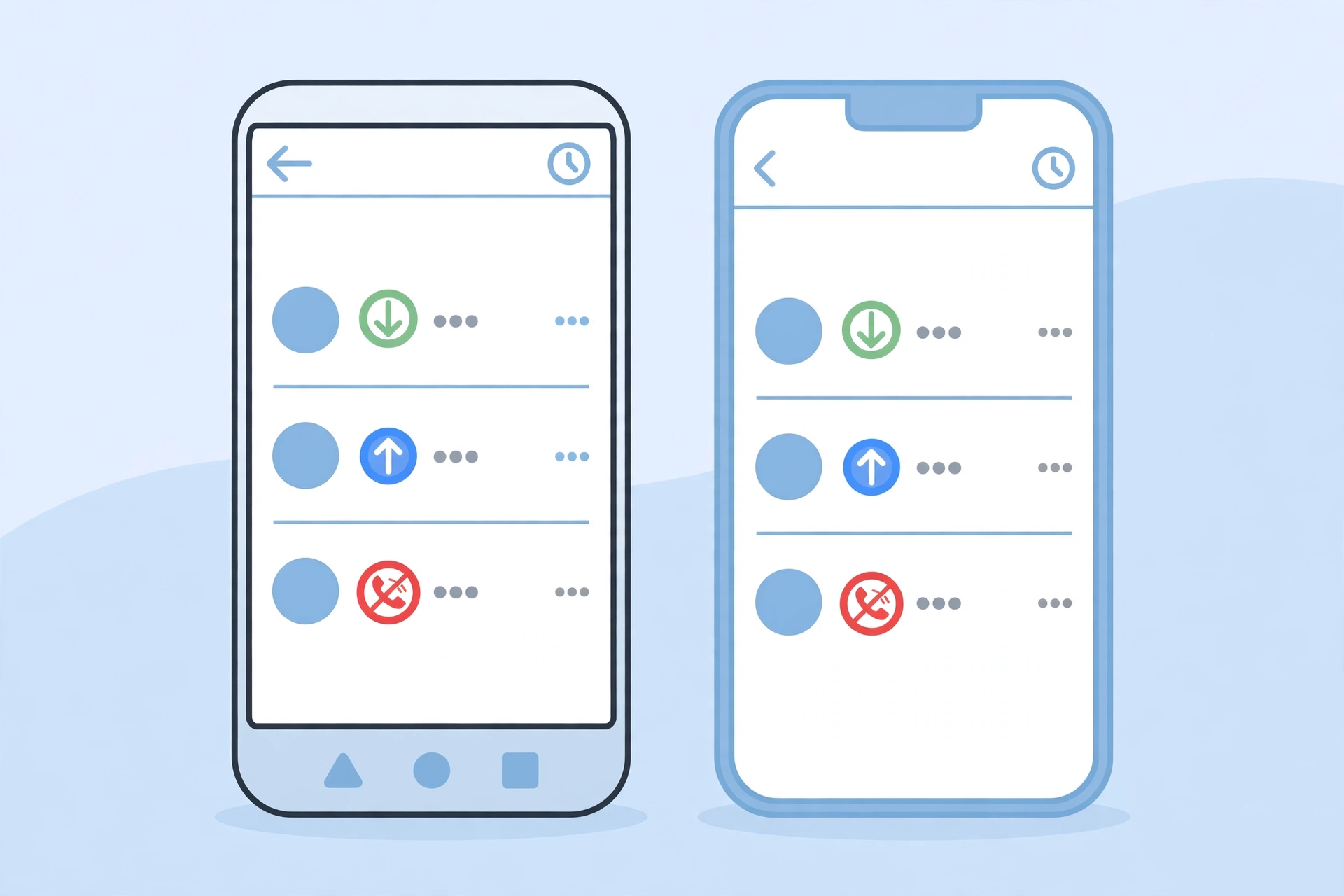
Every entry in your call log carries the same basic details. You get the phone number or contact name. You also get whether the call was incoming, outgoing, or missed. The date, time, and duration are there too.
On most phones, tapping an entry opens a details screen. It shows the full breakdown for that number. That includes every call you have exchanged with it.
Your phone stores this log locally, which is why it opens instantly without the internet. But local storage has a limit. Android generally holds roughly the last 500 call records. iPhone shows the most recent 100 calls in Recents. Past those limits, the oldest entries quietly disappear. That is the most common reason people think their call history is “missing”. It has simply rolled off the list. Remember that. It decides which method you need. Recent calls live on the phone. Older ones live with your carrier or in a backup.
How to Check Call History on Android
Android phones do not all look identical, but the path is the same on nearly every brand. The Phone app is where your call history lives, and the Recents tab is the front door.
Using the Google Phone App
Most Android phones today, including Pixel, Motorola, Nokia, and many others, use Google’s Phone app. Here is how to check call history in it:
- Open the Phone app from your home screen or app drawer.
- Tap Recents at the bottom of the screen. You will see your calls in order, newest first, with icons showing missed, incoming, and outgoing calls.
- To see the details of one call, tap the number or contact name, then tap History. You will see every call with that number, along with the exact time and duration of each one.
- To search for a specific number, tap the search bar at the top and type the name or number.
If your phone shows a Call history option in the three-dot menu at the top right, tap it. That opens the same full list in one place. Google’s own Phone app help pages are worth bookmarking if your menu looks different. Manufacturers sometimes move these options around after an update.
On Samsung Phones
Samsung’s own Phone app works almost the same way, with a couple of small differences. Open the Phone app and tap Recents. Tap any contact or number to open it. Then tap the menu icon and choose Call details. You will see the time, duration, and direction of each call. Samsung also gives you a filter icon at the top of the Recents screen. With it, you can switch between all calls, missed calls, incoming calls, and outgoing calls. You do not need to scroll through everything.
Note: a new phone does not always bring your call history with it. Restores depend on backup being switched on before the switch.
How to Check Call History on iPhone
On iPhone, the process is even simpler, and it has barely changed over the years. Open the green Phone app and tap Recents at the bottom of the screen. You will see every recent call in order, with missed calls shown in red. Tap the small (i) info button next to any entry. You will see the exact time and the duration. You will also see whether it was a regular call or a FaceTime call.
To see only missed calls, tap the Missed tab at the top. To find one person, pull down to reveal the search bar. Type the name or number. It searches your call history, not just contacts. So it is the fastest way to find an old call from someone you never saved.
On newer iPhones, the Recents list may appear under a Calls tab instead. It is the same list under a new name. You can switch back to the classic layout from the layout menu. Apple’s own iPhone User Guide explains the same steps at support.apple.com/guide/iphone.
Android vs iPhone vs Carrier Portal: What Each One Shows
When you need to check call history, you have three places to look, and they do not show the same thing. This table sums up the difference:
| Where you look | What it shows | How far back it goes | How to access it |
|---|---|---|---|
| Android Phone app | Incoming, outgoing, and missed calls with time and duration | Roughly the last 500 call records | Phone app > Recents > tap a number > History |
| iPhone Phone app | Incoming, outgoing, and missed calls, including FaceTime, with time and duration | Last 100 calls shown in Recents | Phone app > Recents > tap the (i) button |
| Carrier app or online account | Itemised call records: number, date, time, duration, and charges | Usually several months, depending on the carrier | Your carrier’s official app or website, signed in to your account |
The pattern is simple. Your phone is fastest for recent calls. Your carrier is the only option for months-old ones. The carrier’s itemised bill is the record that counts as proof, not a screenshot of Recents.
How to Check Old Call History From Months Ago
This is where most people get stuck. You open Recents, scroll to the bottom, and the call from three months ago is simply not there. That is normal — the phone’s list is a rolling window, not an archive. For anything older, you need one of these two routes.
Your Carrier’s App or Online Account
Every mobile carrier keeps itemised call records for billing, and nearly all of them let you view those records yourself. Sign in to your carrier’s official app or your online account on their website. Then look for a section called Usage, Call History, or Usage Details. You will typically see your calls for the last few months, with the number, date, time, duration, and any charges.
This is the most reliable method for old history. The records come from the network itself, not from your handset. It also works if you have changed phones, because the history is tied to your number, not the device. You will need to verify your identity. That is usually with a one-time code sent to your own number. The records generally cover only your own number. Carriers keep these records for a limited period, often several months. So a call from two years ago is unlikely to be there either.
Restore From a Backup
The second route is a backup you made before the calls rolled off your phone. On Android, Google One backup includes call history. If you set up a new phone or reset your current one, use the same Google account during setup. That restores the backed-up call log, along with your contacts and settings. Check whether backup is on under Settings > Google > Backup. Google’s guide to backing up or restoring data on Android walks through the whole process.
Samsung users can also restore from Samsung Cloud under Settings > Accounts and backup > Restore data. On iPhone, the equivalent is an iCloud backup. The catch is the same in all three cases. The backup has to exist before you need it. A backup made today cannot bring back calls that were already gone yesterday.
How to Recover Deleted Call History
Deleted call history feels like a disaster, especially when the number you need was in it. Here is the honest answer. If you deleted the calls from your phone, the only reliable way to get them back is a backup. Restore from a Google One backup, a Samsung Cloud backup, or an iCloud backup made before the deletion. Then the history returns. Without a backup, the calls are almost certainly gone from the phone itself. There is no recycle bin for call logs on Android or iPhone.
Your carrier’s records are the fallback. Even if you deleted everything on the phone, your carrier still has the itemised record. That data lives on their network. Sign in to your carrier’s app or portal and check the usage history for the dates you need. It will not restore entries into Recents. But it gives you the numbers, times, and durations. That is what most people actually need.
One warning: the internet is full of “call history recovery” apps. They promise to bring back deleted logs for a payment, or for full access to your phone. A legitimate recovery can only come from a backup or from your carrier. An app that demands payment first is a warning sign. So is an app that asks for permissions far beyond what a call log needs. Such an app is far more likely to be harvesting your data than recovering it.
How to Delete Call History
Sometimes you want the history gone. It could be a shared phone, a number you would rather not have listed, or just a clean slate. Both platforms make this easy, and both let you delete one entry or everything at once.
Delete One Call or One Person’s History
On Android, open the Phone app and go to Recents. Tap the call you want to remove, and choose the delete option. On Samsung phones, tap the entry and use the delete button. In the Google Phone app, you can also open a contact’s history. Then delete the whole thread for that number in one go. On iPhone, swipe left on any entry in Recents and tap Delete.
Clear All Call History
On Android, open the Phone app and tap the three-dot menu. Choose Call history, then tap the three-dot menu again. Select Clear call history. On iPhone, go to Recents, tap Edit, tap Select, then tap Clear and confirm Clear All Recents. Two things to remember. Clearing the list on your phone does not erase your carrier’s records. On iPhone, if call history syncs through iCloud, deleting it on one device can remove it from your other devices. Those devices share the same Apple ID.
The Scam Warning: “Any Number’s Call History”
You will see websites and videos promising the call history of any mobile number. Just type in a number, pay a small fee, and get a full report. None of them are legitimate. Call records belong to the account holder and the carrier. No website can legally pull another person’s call history on demand.
The pattern is always the same. The site asks for the target number, then a payment or an OTP “for verification”. Once you pay, you get nothing, a fake PDF, or a demand for more money. If you share an OTP, you may hand over access to your own accounts. The rule is simple. Never pay for someone else’s call details. Do not share an OTP with a stranger. Avoid installing an app that claims to show any number’s call history. The only call history you can legally access is your own.
Common Mistakes People Make
Most call history frustration comes from a handful of avoidable mistakes. The first is assuming the phone keeps everything. It does not. The list is a rolling window. So if a call matters, save the number or note it down while it is still visible. The second is deleting history before checking whether a backup exists. Once the entries are gone from the phone, only a backup or the carrier can bring the details back. Neither is instant.
The third is trusting third-party “call tracker” apps with full phone access. Many quietly upload your contacts and call logs to their own servers. The fourth is waiting too long to check the carrier portal, since records are only kept for a limited time. And the fifth is searching in the wrong place. The phone’s main search does not search your call log. Only the search inside Recents does.
Tips That Save You Time Later
A few small habits make call history far more useful. Save unknown numbers the moment they matter. Even a rough name like “Plumber March” beats an unsaved number you cannot place later. If a call is important for work or a dispute, take a screenshot of the details screen right away. The entry may roll off the list before you need it.
Turn on automatic backup now, not after you lose something. Google One backup on Android and iCloud backup on iPhone both include call history. They only help if they were running before the problem. For a permanent record, download your carrier’s monthly itemised bill as a PDF. It is the one version of your call history that does not expire when your phone’s list rolls over.
Frequently Asked Questions
How far back can I see my call history?
On your phone, Android shows roughly the last 500 call records. iPhone shows the most recent 100 calls in Recents. For anything older, check your carrier’s app or online account, where itemised records are usually kept for several months.
Can I recover deleted call history?
Yes, but only from a backup made before the deletion. That could be a Google One or Samsung Cloud backup on Android, or an iCloud backup on iPhone. Without a backup, the entries are gone from the phone. But your carrier’s itemised records will still list the numbers, times, and durations.
Can I check someone else’s call history?
No. You can only access the call history of a number you own, through your own phone, backup, or carrier account. Websites and apps that promise any number’s call details are scams. Never pay them, and never share an OTP with them.
Why is my call history missing?
The most common reason is the rolling limit. Older entries are automatically removed once you pass roughly 500 records on Android or 100 shown calls on iPhone. Other causes are switching to a new phone without restoring a backup, or a recent reset. Check your carrier’s portal for the missing calls.
How do I delete call history for one person?
On Android, open the Phone app, go to Recents, open that contact’s history, and delete it. On iPhone, go to Recents, swipe left on the calls from that person, and tap Delete. This removes them from your phone only — your carrier’s records are unaffected.
Does my carrier keep longer call records than my phone?
Yes. Carriers keep itemised call records for billing, usually for several months. That is far longer than the rolling list on your phone. Sign in to your carrier’s official app or online account. Look for the usage or call history section to view and download them.
Your call history is one of those features you never think about until the day you need it. The good news is that checking it takes less than a minute once you know where to look. The older records are never as lost as they seem. They are just in a different place. Learn the limits of your phone’s list. Turn on backup today. Remember your carrier’s portal for the calls that matter months later. The next time an unknown number rings twice and disappears, you will know exactly where to find it.