
Time Lock App for Android – Lock Your Screen with a Time Password
Let me guess. Someone around you always figures out your phone PIN. Maybe it is your younger brother, your best friend, or that one cousin who somehow watches you unlock your phone every single time. You change the PIN, and two days later they know the new one too. Frustrating, right? A time lock app solves this problem for good.
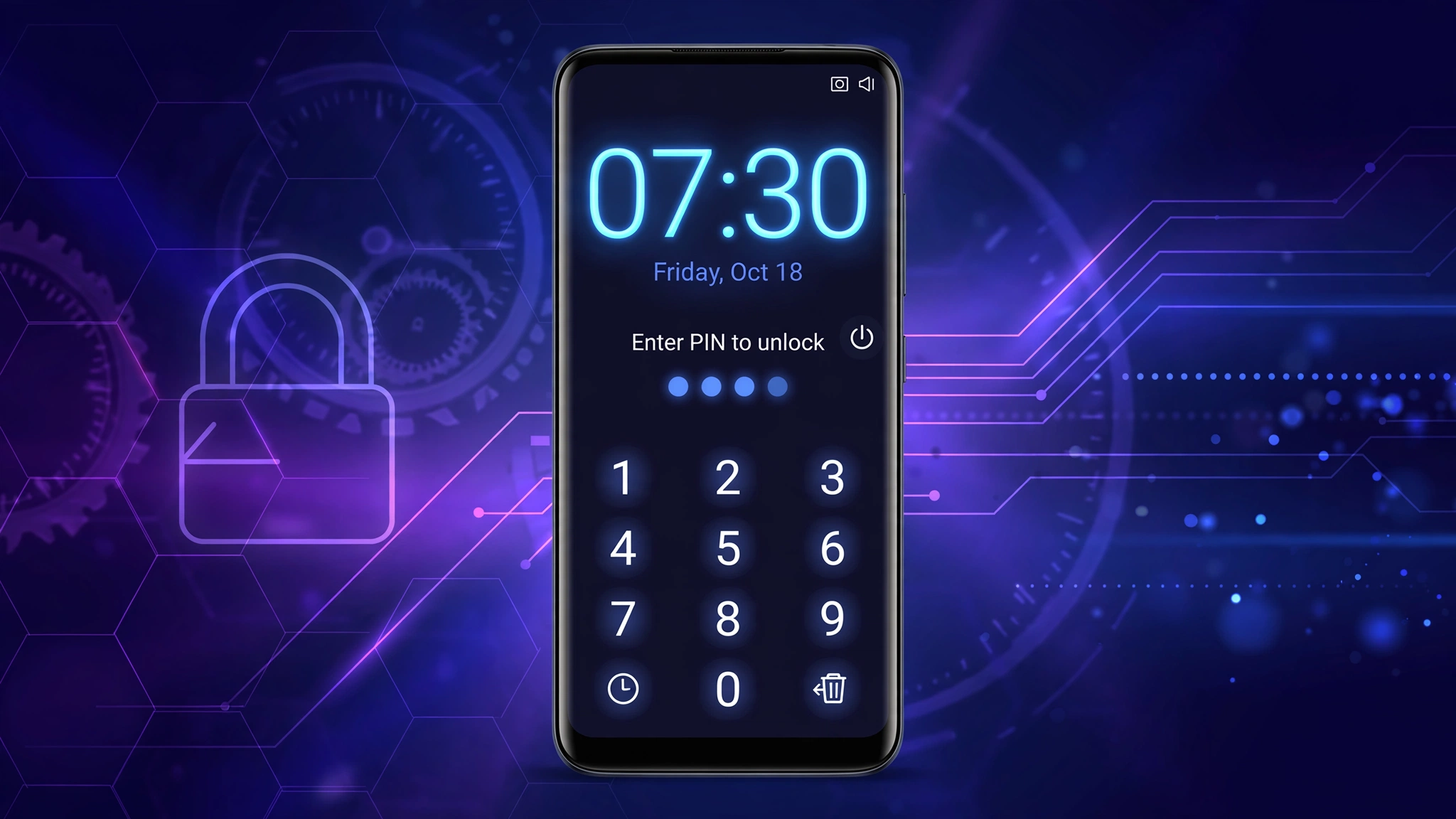
Now imagine a lock screen password that changes by itself every single minute. At 10:15 your password is 1015. At 10:16 it becomes 1016. Nobody can shoulder-surf it, nobody can guess it later, and you never have to remember anything — you just look at the clock. That is exactly what a time lock app does, and in this guide I will show you the best time lock apps for Android, how to set a time password lock screen step by step, and how to use app timer locks to control your screen time as well.
What Is a Time Lock App?
A time lock app is a mobile application that locks your phone or your apps using time in some way. The interesting thing is that “time lock” actually means two different features, and people search for both:
1. Time Password Lock (the smart trick)
This is the famous one. The app makes your current time your lock screen password. If the time is 07:30, your PIN is 0730. One minute later, it is 0731. The password keeps changing automatically, so even if someone sees you typing it, that code is useless after sixty seconds. Some apps even let you add your own secret number before or after the time, which makes it almost impossible to crack.
2. App Timer Lock (for screen time control)
The second type locks apps after a fixed usage time. For example, you set Instagram to 30 minutes per day. Once those 30 minutes finish, the app locks automatically until the next day — or for a waiting period you choose. Students, parents, and anyone trying to reduce phone addiction use this type a lot.
In this article, we will cover both types, because a good time lock app setup usually combines them: a time password for security, and app timers for self-control.
Best Time Lock Apps for Android
I tested the popular options and picked the ones that are simple, free, and actually work on most Android phones. Here are my top recommendations:
1. Screen Lock – Time Password (Best Overall)
This is the most downloaded time password app on the Play Store, and for good reason. It replaces your lock screen with a clean, iPhone-style keypad where the password is your current time. You can also combine the time with your own PIN — for example, PIN + current time — so the final code is longer and even safer. It supports 12-hour and 24-hour formats, lets you customise the lock screen wallpaper and sliding text, and it uses very little battery.
Best for: Anyone who wants the pure time password trick with a beautiful lock screen.
👉 Download Screen Lock – Time Password from the Play Store
2. AppLock – Time Password
If you want to lock individual apps instead of the whole phone, this one is for you. It locks WhatsApp, Gallery, Messenger, Settings, and any other app with a time password that changes every minute. It also has a photo and video vault, break-in alerts that secretly capture the face of anyone who enters the wrong password, and modifiers like “reverse PIN” — where you type the time backwards. Sneaky, but very effective.
Best for: Locking specific private apps with a changing password.
👉 Download AppLock – Time Password from the Play Store
3. App Off Timer: App Timer Lock (Best for Screen Time)
This one is a proper app timer lock. You set a usage limit for each app — say, 20 minutes for TikTok — and when the time finishes, the app locks for a waiting period you choose. It also supports daily limits for groups of apps, scheduled locking by time of day, and usage history for 24 hours, 7 days, or 30 days. Parents like it because it has password protection and uninstall protection for kids’ phones.
Best for: Controlling screen time for yourself or your children.
👉 Download App Off Timer from the Play Store
4. Digital Wellbeing App Timers (Built-in, No Download Needed)
Before you install anything, check your phone. Almost every Android phone already has Digital Wellbeing built in. It lets you set a daily timer for any app, and when the timer ends, the app pauses and its icon turns grey until midnight. It is basic compared to the apps above — and you can switch the timer off easily, which is a weakness — but it is free, safe, and already on your phone.
Best for: A quick, no-download starting point.
Time Lock App Comparison Table
| App | Lock Type | Price | Best Feature | Rating Feel |
|---|---|---|---|---|
| Screen Lock – Time Password | Full screen time password | Free | PIN + current time combinations | ★★★★☆ |
| AppLock – Time Password | Per-app time password + vault | Free | Break-in alerts with intruder selfie | ★★★★☆ |
| App Off Timer | Usage timer + waiting period | Free | Daily limits for app groups | ★★★★☆ |
| Digital Wellbeing | Built-in daily app timers | Free (built-in) | No download needed | ★★★☆☆ |
How to Set a Time Password Lock Screen (Step by Step)
Follow these steps using the Screen Lock – Time Password app. The process is almost the same in the other time lock apps too:
- Download the app from the Google Play Store and open it.
- Enable the lock screen. The app will ask for a few permissions — allow them, because a lock screen app needs permission to appear over your normal screen.
- Choose your lock type. Select “Current Time” if you want the time alone as your password. For extra safety, choose “PIN + Current Time” and set a short secret number that only you know.
- Select 12-hour or 24-hour format. Match it with the clock format you normally use, so you never get confused.
- Customise the look. Pick a wallpaper, add your name as the sliding text if you like, and turn unlock sound or vibration on or off.
- Test it. Lock your phone, check the time, and type it as the PIN. If the time is 09:41, type 0941 — the phone opens. Wait one minute and try the old code; it should fail, and the new time should work.
That is it. From now on, your password updates itself every minute without you doing anything.
How to Set an App Timer Lock Without Any App
If you only want to limit how long apps can be used, your phone’s built-in Digital Wellbeing is enough:
- Open Settings and tap Digital Wellbeing & Parental Controls.
- Tap the usage chart or Dashboard to see all your apps.
- Find the app you want to limit and tap the hourglass icon next to it.
- Set your daily limit — for example, 30 minutes for Instagram — and tap OK.
When the limit finishes, the app pauses for the rest of the day. Honest warning: because there is no password protecting this on most phones, a determined person can open Settings and remove the timer. If you need a lock that cannot be removed easily, use App Off Timer with its password and uninstall protection instead.
Is a Time Lock App Safe?
Mostly, yes — if you download from the Google Play Store and check the app’s reviews and download count first. A lock screen app does ask for sensitive permissions, like displaying over other apps and sometimes device admin access. That is normal for this category, but it also means you should avoid random APK files from unknown websites. Stick to well-known apps, and if an app asks for permissions that make no sense — like access to your contacts for a lock screen — delete it.
One more practical tip: always keep a backup unlock method. If a time lock app ever glitches, you do not want to be locked out of your own phone. Most good apps offer a security question or a master PIN for emergencies. Set it up on day one.
And while you are improving your phone’s security setup, you might also like my guide on the WiFi password show app without root, which shows how to view saved WiFi passwords on your Android phone easily.
Pros and Cons of Time Lock Apps
Pros
- Password changes every minute, so it cannot be shared or guessed later
- Nothing to remember — the clock tells you your password
- App timer locks genuinely reduce daily screen time
- Most good options are completely free
Cons
- If someone knows the trick, they know your password is the time — so always add a secret PIN with it
- Some Chinese-brand phones (Huawei, Xiaomi, Oppo) aggressively kill background apps, which can affect timer locks
- Lock screen replacement apps show ads in the free versions
Frequently Asked Questions
What is the best time lock app for Android?
For a full lock screen with a changing time password, Screen Lock – Time Password is the best choice. For locking apps after a usage limit, App Off Timer is better. Both are free on the Play Store.
How does a time password work?
Your password is simply the current time on your phone. If it is 04:25, your PIN is 0425. Every minute the time changes, so the password changes with it. Many apps let you add your own secret digits before or after the time for extra security.
Can someone guess my time password?
If they know you use a pure time password, yes — they just need to see a clock. That is why you should always use the “PIN + Time” option, where your secret number is combined with the time. Then knowing the trick is not enough to open your phone.
Do time lock apps work on Samsung and Xiaomi phones?
Yes, time password lock screens work on almost all Android phones. App timer locks can sometimes be delayed on Xiaomi, Huawei, and Oppo phones because of aggressive battery saving. Whitelist the app in battery settings to fix this.
Is there a time lock app for iPhone?
iOS does not allow third-party apps to replace the lock screen, so the time password trick is Android-only. On iPhone, you can use Screen Time → App Limits to set daily time limits on apps instead.
What happens if the time lock app stops working?
Good time lock apps provide a backup master PIN or a security question. Set it during installation. If you are ever fully locked out, restarting the phone in Safe Mode disables third-party lock screens on most Android devices, letting you uninstall the app safely.
Final Words
A time lock app is one of those rare tricks that is both fun and genuinely useful. A password that changes every minute solves the oldest problem in the world — people peeking at your PIN — and app timer locks help you take back hours that disappear into endless scrolling. Start with the free Screen Lock – Time Password app, combine your PIN with the time, and you will never worry about someone memorising your password again. If you found this guide helpful, explore more simple Android guides here on Waleed Amjad.