
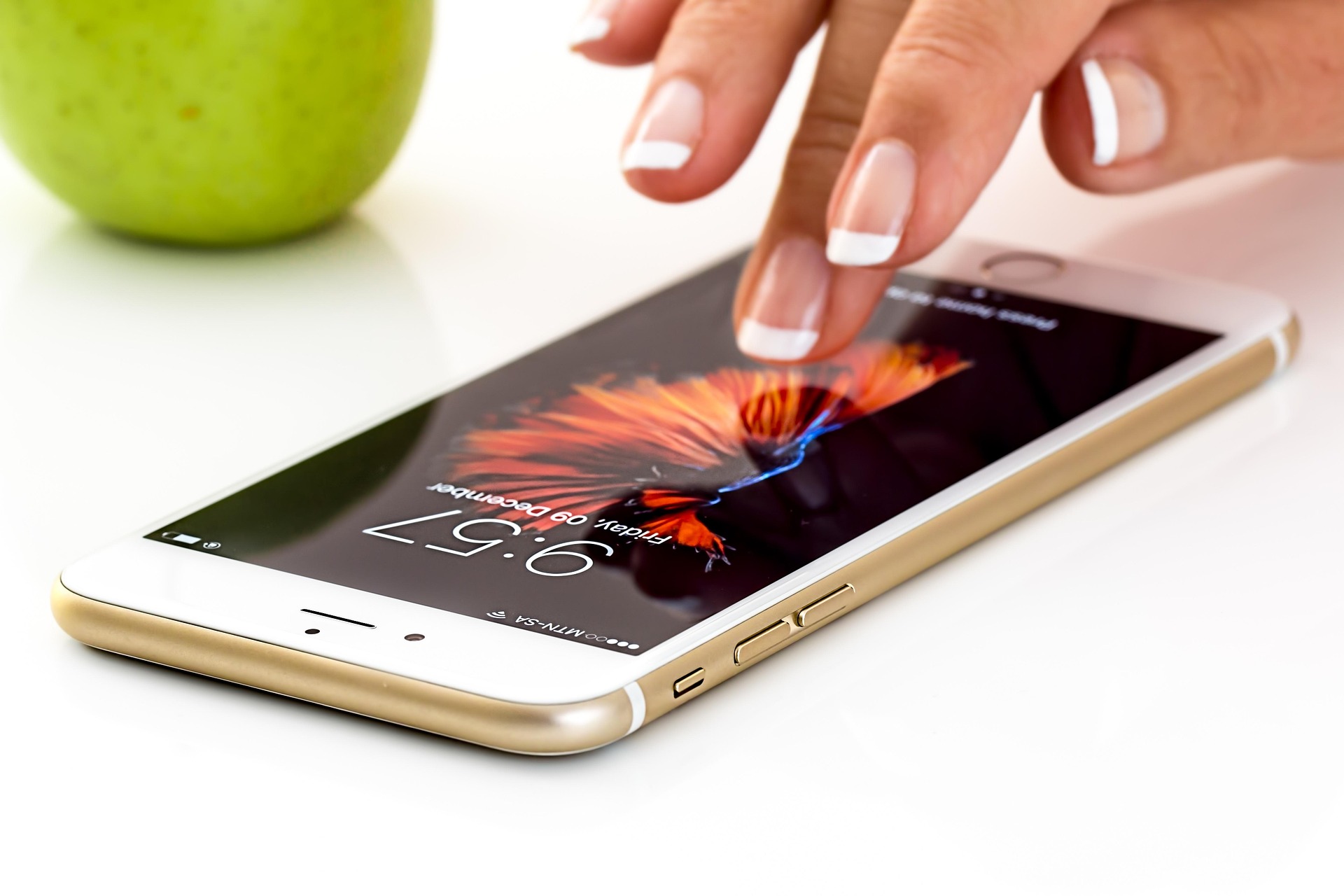
The best fingerprint lock screen apps for Android combine biometric security with ease of use. Top picks include AppLock, Norton App Lock, Smart Lock, Fingerprint Lock Screen, and Fingerprint Security Lock—each offering unique features to keep your data private and your phone protected.
Your Android phone holds everything—your banking apps, personal photos, private messages, and more. So, the question isn’t whether you should lock your screen. It’s how you should do it. Fingerprint lock screen apps offer one of the fastest, most reliable ways to secure your device. No PINs to forget, no patterns to smudge!
But with so many options on the Google Play Store, how do you know which one is worth downloading? This guide breaks down how fingerprint lock screen apps work, reviews the top five picks, and shares tips to get the most out of whichever app you choose.
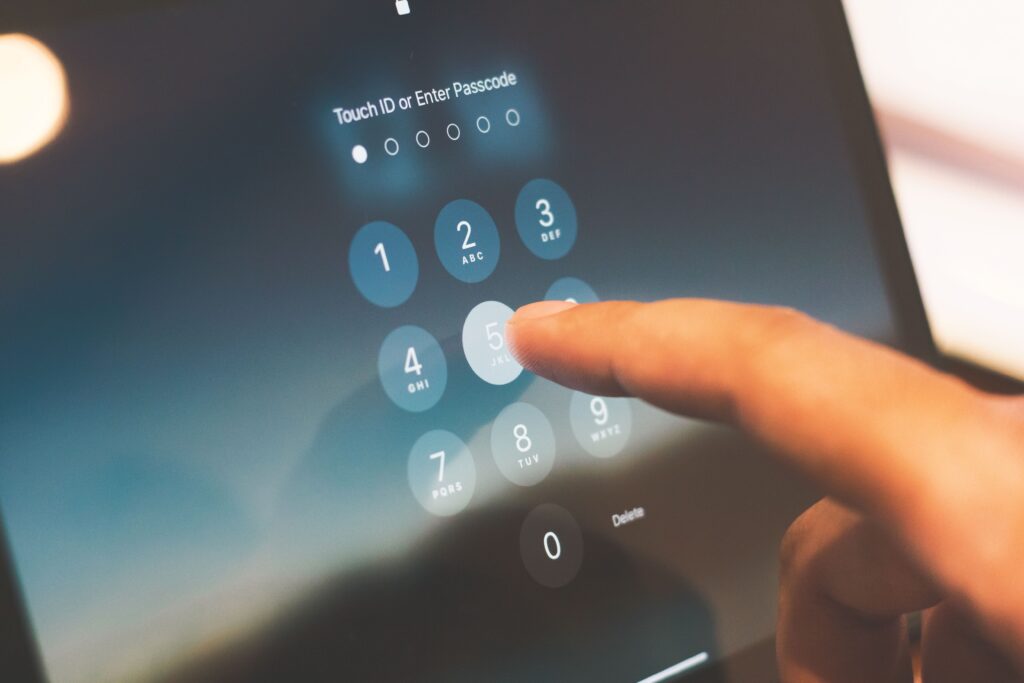
How Do Fingerprint Lock Screen Apps Work on Android?
Fingerprint lock screen apps tap into your Android device’s built-in biometric sensor to verify your identity before granting access. When you register your fingerprint, the app stores an encrypted template of your unique print. Each time you unlock your phone, the sensor scans your finger and compares it to the stored template—all in milliseconds.
Most modern Android devices (running Android 6.0 or higher) support third-party fingerprint apps through the system’s official biometric API. This means the apps themselves never store your actual fingerprint image—just an encrypted representation of it. Pretty clever, right?
Top 5 Fingerprint Lock Screen Apps for Android
1. AppLock — Best for Locking Individual Apps
Features: AppLock lets you lock specific apps—think Instagram, WhatsApp, or your photo gallery—behind a fingerprint scan. It also supports PIN and pattern locks as backups, plus an intruder selfie feature that snaps a photo of anyone who enters the wrong password.
Pros:
- Highly customizable; lock any app individually
- Supports fingerprint, PIN, and pattern authentication
- Includes a vault for hiding private photos and videos
- Free to use with optional premium upgrade
Cons:
- Ads can be intrusive on the free plan
- Some features require a paid subscription
Best for: Android users who want granular control over which apps are protected.
2. Norton App Lock — Best for Security-Focused Users
Features: Backed by the trusted Norton cybersecurity brand, Norton App Lock adds a fingerprint-protected layer to your individual apps. It also features a screen lock that activates when your phone detects it’s been moved or picked up.
Pros:
- Reputable brand with strong security credentials
- Clean, ad-free interface
- Free to download and use
Cons:
- Fewer customization options compared to competitors
- Lacks a built-in media vault
Best for: Users who prioritize a clean, no-nonsense security experience from a trusted brand.
3. Smart Lock (Built-in Android Feature) — Best Free Option
Features: Smart Lock is Google’s native Android security feature, available on most Android devices running 5.0 and above. It allows you to keep your phone unlocked in trusted environments—like at home or when connected to a trusted Bluetooth device—while using fingerprint authentication elsewhere.
Pros:
- No download required—built into Android
- Seamless integration with the Android ecosystem
- Completely free with no ads
Cons:
- Limited customization options
- Trusted location features can occasionally be inconsistent
Best for: Android users who want a simple, zero-cost security upgrade without downloading a third-party app.
4. Fingerprint Lock Screen — Best for Aesthetics
Features: Fingerprint Lock Screen focuses on combining security with style. It offers a wide range of customizable lock screen themes, HD wallpapers, and a smooth fingerprint unlock animation. Underneath the pretty exterior, it delivers solid fingerprint authentication backed by PIN and pattern fallback options.
Pros:
- Beautiful, highly customizable lock screen themes
- Smooth and fast fingerprint recognition
- Supports multiple authentication methods
Cons:
- Heavier on battery consumption than some alternatives
- Premium themes require in-app purchases
Best for: Users who want their lock screen to look as good as it works.
5. Fingerprint Security Lock — Best for Simplicity
Features: Fingerprint Security Lock keeps things refreshingly simple. The app is lightweight, easy to set up, and focuses purely on fingerprint authentication—no bloat, no unnecessary extras. It supports backup unlock methods and works smoothly across a wide range of Android devices.
Pros:
- Lightweight and fast
- Simple, user-friendly interface
- Compatible with older Android versions
Cons:
- Limited advanced features
- Basic design with minimal customization
Best for: Android users who want a straightforward fingerprint lock app without the fuss.
What Factors Should You Consider When Choosing a Fingerprint Lock Screen App?
Not every app will be the right fit for every user. Here’s what to think about before you download:
- Compatibility: Check that the app supports your Android version and device model.
- Authentication methods: The best apps offer fingerprint as the primary method with PIN or pattern as a backup—just in case your fingers are wet or dirty.
- Permissions: Be cautious of apps that request excessive permissions. A lock screen app doesn’t need access to your contacts or microphone.
- Privacy policy: Look for apps that explicitly state they don’t store or share biometric data.
- Cost: Many great options are free, but premium plans often unlock ad-free experiences or extra features.
Tips for Maximizing Security with Fingerprint Lock Screen Apps
Getting the app is just the first step! Here are a few extra tips to lock down your Android security even further:
- Register multiple fingerprints. Most apps let you add more than one finger. Add your index finger and thumb so you’re covered no matter how you pick up your phone.
- Set a strong PIN backup. Your fingerprint sensor can fail—especially in cold weather or if your fingers are damp. Always set a strong backup PIN, and avoid obvious choices like “1234.”
- Enable the intruder selfie feature. Apps like AppLock will photograph anyone who enters the wrong password. This is a great deterrent if your phone ever gets into the wrong hands.
- Keep your apps updated. Security vulnerabilities are regularly patched through updates. Always keep your lock screen app—and Android itself—up to date.
- Lock your most sensitive apps individually. Even if someone unlocks your phone, having a second layer of fingerprint protection on banking or email apps adds crucial extra security.
The Future of Biometric Security on Android Is Bright
Fingerprint lock screen apps have come a long way, and they’re only getting better. As Android continues to evolve, biometric security is becoming faster, smarter, and more sophisticated. Features like under-display fingerprint sensors, 3D face recognition, and AI-driven behavioral authentication are already making their way into mainstream devices.
For now, the five apps reviewed above offer excellent protection for your Android phone. Whether you go for the feature-rich AppLock, the brand-trusted Norton App Lock, or the built-in simplicity of Smart Lock, you’re making a smart choice for your digital security. Take a few minutes to set it up properly, follow the tips above, and rest easy knowing your personal data is safe!
Frequently Asked Questions
Are fingerprint lock screen apps safe to use on Android?
Yes, reputable fingerprint lock screen apps are safe. They use Android’s official biometric API, which stores only an encrypted template of your fingerprint—never the actual image. Always download apps from the Google Play Store and check their permissions and privacy policies before installing.
Can fingerprint lock screen apps lock individual apps, not just the home screen?
Yes! Apps like AppLock and Norton App Lock let you lock specific apps—such as banking, messaging, or social media apps—behind a fingerprint scan. This adds a second layer of protection even if someone unlocks your home screen.
What happens if my fingerprint sensor doesn’t recognize my finger?
Most fingerprint lock screen apps include backup authentication methods, such as a PIN or pattern. If your sensor fails—due to a wet finger, a cut, or hardware issues—you can use your backup method to access your device.
Do fingerprint lock screen apps drain battery life?
Most well-designed apps have minimal impact on battery life. However, apps with heavy visual customization or constant background monitoring may use slightly more battery. Lightweight options like Fingerprint Security Lock are the best choice if battery preservation is a priority.
Which fingerprint lock screen app is best for older Android devices?
Fingerprint Security Lock is the most compatible option for older Android devices, as it’s lightweight and supports earlier versions of Android. Smart Lock, being a native Android feature, is also a reliable no-download option for older devices.
Contents
- 1 How Do Fingerprint Lock Screen Apps Work on Android?
- 2 Top 5 Fingerprint Lock Screen Apps for Android
- 3 What Factors Should You Consider When Choosing a Fingerprint Lock Screen App?
- 4 Tips for Maximizing Security with Fingerprint Lock Screen Apps
- 5 The Future of Biometric Security on Android Is Bright
- 6 Frequently Asked Questions
- 6.1 Are fingerprint lock screen apps safe to use on Android?
- 6.2 Can fingerprint lock screen apps lock individual apps, not just the home screen?
- 6.3 What happens if my fingerprint sensor doesn’t recognize my finger?
- 6.4 Do fingerprint lock screen apps drain battery life?
- 6.5 Which fingerprint lock screen app is best for older Android devices?