
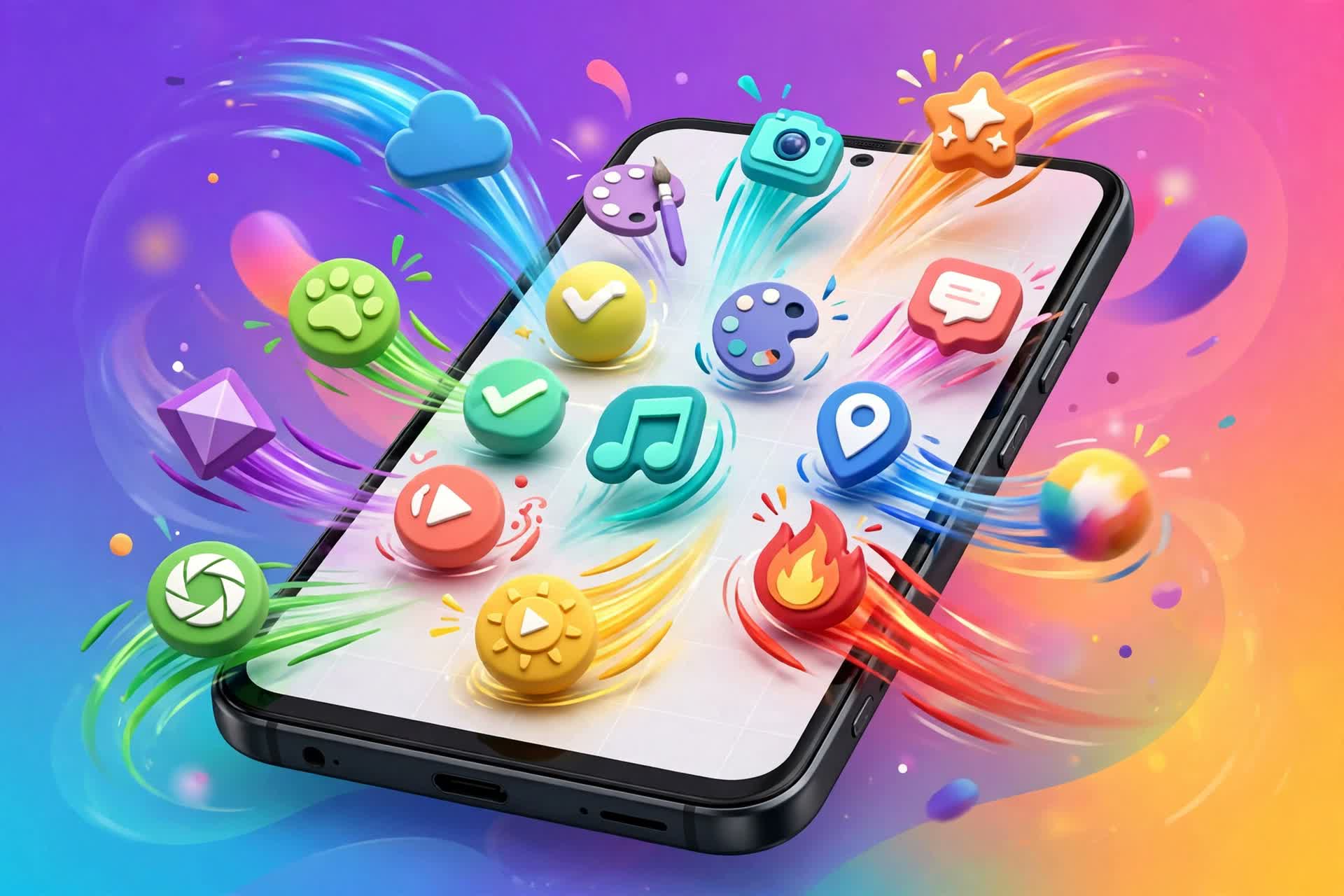
Your Android home screen does not have to sit still. If you are bored of the same static grid of icons, the Rolling Icon app turns your home screen into a small physics playground: your app icons roll, spin, bounce, and collide when you tilt your phone, swipe, or tap. Then they settle down again, so your phone stays easy to use.
In this guide, you will learn how to use the Rolling Icon app on Android step by step: which is the real app (there are many copies with the same name), how to download it safely from the Play Store, how to set it up as a live wallpaper or a launcher, and how to customize gravity, size, speed, and backgrounds. No root is needed, and you do not have to replace your whole phone setup if you do not want to.
What Is the Rolling Icon App?
The Rolling Icon app is an Android personalization app that replaces your static home screen icons with moving ones. Instead of fixed icons in rows, your apps behave like small balls on the screen. Tilt the phone and they tumble. Swipe and they slide along. Tap one and it opens the app, just like a normal icon.
The key idea is that the icons do not keep moving forever. After the motion, they come to rest and stay put, so you can still find and tap the app you need. That is what makes it different from a busy animated wallpaper that never stops moving. You get the fun of motion without losing the usability of your home screen.
Most Rolling Icon apps also let you:
- Choose exactly which apps appear as rolling icons
- Add your own photos as icons that open an app when tapped
- Change the background to a built-in backdrop or your own picture
- Adjust gravity, bounce, icon size, and how quickly icons settle
- Pin the apps you use most so they hold their place while the rest move around
Which Is the Real Rolling Icon App? (Beware of Clones)
This part matters, because “Rolling Icons” is not one single app. A search on the Play Store shows several apps with almost the same name, and some of them are low-quality copies. Installing the wrong one is the most common reason people say the app “does not work.”
Here are the main real apps, with their developers and sizes, so you can check before you install:
| App | Developer | Installs | Rating | Best for |
|---|---|---|---|---|
| Rolling Icon: 3D Wallpaper | Taka Group – Maxlabs Personalization Tools | 17 million+ | 4.36 stars (66K ratings) | Full 3D rolling wallpaper + launcher experience |
| Rolling Icon 3D: Icon Changer | World Labs Global | 720K+ | 4.20 stars (7.9K ratings) | Changing icons with rolling and spinning effects |
| Rolling Icon – Icon Spinning | Icon animation developer | 81K ratings on Play Store | 4.1 stars | Spinning icon effects and icon packs |
| Rolling Icons Live Wallpaper | Various developers | Smaller | 4.1 stars (1K ratings) | Simple rolling live wallpaper |
The biggest and most established one is Rolling Icon: 3D Wallpaper by Taka Group – Maxlabs Personalization Tools. It has been on the Play Store since September 2018, was updated on October 22, 2026, and is installed around 12,000 times per day. If you want the full rolling-icons experience, start with this one.
Before you tap Install on any Rolling Icon app, check three things on its Play Store page: the developer name, the install count, and the rating. If an app has the same name but a different developer, only a few downloads, and no real reviews, skip it. That is how you avoid clones.
How to Download and Install the Rolling Icon App
Follow these steps to get the real app safely:
- Open the Google Play Store on your Android phone.
- Search for “Rolling Icon: 3D Wallpaper”.
- Look for the app by Taka Group – Maxlabs Personalization Tools with 17 million+ installs and a 4.3+ star rating.
- Tap Install and wait for the download to finish (the app is about 30 MB).
- Tap Open once the installation is complete.
Download it only from the Google Play Store. Do not download “Rolling Icons APK” files from random websites. Those files can be modified, may carry malware, and will not update automatically. The Play Store version is free, it updates itself, and you can uninstall it cleanly at any time.
Official Play Store links for the main apps:
- Rolling Icon: 3D Wallpaper: https://play.google.com/store/apps/details?id=com.thmobile.rollingapp&hl=en_AU
- Rolling Icon 3D: Icon Changer: https://play.google.com/store/apps/details?id=com.rolling.icon.iconchanger&hl=en-us&gl=us
- Rolling Icon – Icon Spinning: https://play.google.com/store/apps/details?id=com.rollingicon.iconanimation&hl=en
How to Use the Rolling Icon App: Step-by-Step Setup
Once the app is installed, the setup takes about five minutes. Here is the complete process.
Step 1: Grant the Permissions It Asks For
When you open the app for the first time, it will ask for a few permissions. The important one is “Display over other apps” (draw over other apps). This permission is needed so that tapping a rolling icon actually opens the app. Without it, tapping an icon may just push it around instead of opening anything.
It may also ask for storage access if you want to use your own photos as icons or backgrounds. Grant only what you need. A genuine Rolling Icon app does not need your contacts, messages, or call history.
Step 2: Choose Which Apps Roll
Inside the app, you will see a list of your installed apps. Toggle on the apps you want to appear as rolling icons on your home screen. Most people turn on the apps they open every day, such as WhatsApp, YouTube, Instagram, and Chrome, and turn off system apps like Settings or Phone to keep the screen clean.
Some versions of the app let you pin an app. A pinned app holds its place while the other icons tumble around it. Pin the two or three apps you need in a hurry, for example your phone dialer or WhatsApp, so you never have to hunt for them.
Step 3: Pick a Background
Next, choose a background for your rolling home screen. You can use one of the built-in backdrops or upload your own photo from the gallery. A darker or simpler background usually looks better, because bright, busy photos make it harder to see the icons.
If you use your own photo as an icon, remember that tapping that photo icon opens the app you assigned to it. It works just like a normal app icon, only with your picture on it.
Step 4: Set It as Live Wallpaper or Launcher
This is the step most people get confused about. The Rolling Icon app can work in two ways:
Option A: As a live wallpaper (recommended for most users). Go to your phone’s Settings, then Wallpaper, then Live Wallpaper, and select Rolling Icon. Your normal launcher, app drawer, and navigation stay exactly the same. Only your home screen background becomes the rolling-icons layer. This is the safer choice, and you can switch back to a normal wallpaper in seconds.
Option B: As a full launcher. Go to Settings, then Apps, then Default Apps, then Home App, and select Rolling Icon. This replaces your entire home screen interface with the rolling-icons experience. It looks more dramatic, but it changes how you open everything, so only choose it if you want the full effect.
Most users prefer the live wallpaper option, because it keeps the phone’s normal navigation intact while adding the fun visual layer.
Step 5: Customize Gravity, Size, and Speed
Now comes the fun part. Open the app’s settings and adjust:
- Gravity: How strongly icons react when you tilt the phone. Lower gravity feels floaty; higher gravity feels snappy.
- Bounce: How much icons bounce when they collide with each other or the edges of the screen.
- Icon size: Smaller icons let you fit more apps; larger icons are easier to tap.
- Speed and settle time: How fast icons move and how quickly they come to rest after you stop touching the screen.
- Shapes: Some versions offer different icon shapes. A round icon rolls smoothly, while a hexagon or triangle settles with a little clunk onto a flat side.
Every setting shows its effect live on your actual home screen while you adjust it, so move one slider at a time and watch what happens. Start with the defaults, use the phone for a day, and then fine-tune.
Step 6: Test It Like a Normal Phone
Tilt the phone gently and watch the icons tumble, then settle. Tap an icon and confirm it opens the right app. Swipe between home screen pages and check that the icons slide along. If an icon does not open its app, go back to Step 1 and make sure the “Display over other apps” permission is turned on.
Rolling Icon App vs Other Icon Changers: Comparison
How is a rolling-icons app different from a normal icon changer like Nova Launcher or X Icon Changer? Here is a quick comparison:
| Feature | Rolling Icon app | Nova Launcher + icon pack | X Icon Changer |
|---|---|---|---|
| Icons move with physics | Yes (roll, spin, bounce) | No (static icons) | No (static shortcuts) |
| Changes all icons at once | Yes, as wallpaper/launcher | Yes, via icon theme | No, one by one |
| Needs a new launcher | Optional (wallpaper mode works without it) | Yes | No |
| Custom photos as icons | Yes | Yes (with launcher edit) | Yes |
| Root needed | No | No | No |
| Battery impact | Low to moderate (3D effects use more) | Very low | Very low |
In short: if you want motion and a playful home screen, a Rolling Icon app is the right choice. If you only want to change the look of static icons, a launcher with an icon pack is simpler. You can also combine them: use a Rolling Icon wallpaper for motion and keep your favourite launcher for everything else.
If you enjoy customizing your Android phone, you may also like our guides on showing WiFi passwords without root and on the Time Lock app for Android:
- How to Show WiFi Password on Android Without Root: https://waleedamjad.com/wifi-password-show-app-without-root/
- Time Lock App for Android: https://waleedamjad.com/time-lock-app-for-android/
Pros and Cons of the Rolling Icon App
Pros:
- Makes a boring home screen genuinely fun and personal
- No root and no technical skills needed
- Icons settle down, so the phone stays usable
- Works as a live wallpaper without replacing your launcher
- Free to download, with photo icons and many backgrounds
Cons:
- The free version of some Rolling Icon apps shows ads, and extra effects may need a pro version
- 3D physics effects can use more battery than a static wallpaper
- With many clones on the Play Store, you must check the developer before installing
- A very busy setup (too many icons, bright background) can look messy
Is the Rolling Icon App Safe?
Yes, if you install the real app from the Google Play Store. The genuine apps work on your device and do not need an account. Your photos stay on your phone when you use them as icons.
Stay safe with three rules. First, install only from the Play Store, never from APK mirror sites. Second, check the developer name and install count before installing, because clones copy the name and icon. Third, do not grant permissions the app does not need. Overlay permission and storage access (for photos) are normal for this kind of app. Access to contacts, SMS, or call logs is not.
One more warning: never install a “modded” Rolling Icon app that promises paid features for free. Those versions are a common way to hide adware, and they can get your Google account flagged. The free Play Store version is enough for most users.
Troubleshooting: Common Problems and Fixes
Icons move but do not open apps. The “Display over other apps” permission is off. Go to Settings, then Apps, then Rolling Icon, then Permissions, and turn on “Display over other apps.” Then try again.
The app does not appear after setting the wallpaper. Some phones kill live wallpapers to save battery. Go to your battery settings, find the Rolling Icon app, and set it to “Unrestricted” or remove it from battery optimization.
Icons look too small or too big. Open the app’s settings and adjust the icon size slider. Smaller icons fit more apps; larger icons are easier to tap.
The phone feels slower. Reduce the number of rolling apps, turn down gravity and bounce, or switch from launcher mode to live wallpaper mode. On older phones, fewer moving icons means smoother performance.
I want my old home screen back. Nothing is permanently changed. Either set a normal wallpaper again, or go to Settings, then Apps, then Default Apps, then Home App, and select your previous launcher. You can also simply uninstall the app.
Frequently Asked Questions (FAQ)
Is the Rolling Icon app free?
Yes, the main Rolling Icon apps are free to download from the Google Play Store. Some offer extra themes or effects as in-app purchases, but the core rolling-icons experience works without paying.
Does the Rolling Icon app work on iPhone?
The Rolling Icon apps discussed here are made for Android. On iPhone, home screen customization is much more limited, and you cannot set a live wallpaper that opens apps in the same way. iPhone users can change individual icons with the Shortcuts app, but they will not get the rolling physics effect.
Do rolling icons drain the battery?
A little, but not much. The physics simulation mostly runs while you are interacting with the home screen. Once the icons settle, the wallpaper stops working hard. If you notice battery drain, reduce the number of rolling apps and turn down the effects.
Does it change my real app icons?
No. Your original apps are untouched. The rolling icons are a visual layer (wallpaper or launcher) that opens the real apps when tapped. Uninstalling the app or changing the wallpaper brings back your normal icons instantly.
Why are there so many apps called Rolling Icon?
Because the idea became popular, many developers copied the name. Always check the developer name, install count, and rating on the Play Store page. The most installed one is Rolling Icon: 3D Wallpaper by Taka Group – Maxlabs Personalization Tools.
Can I use my own photo as an icon?
Yes. Most Rolling Icon apps let you pick a photo from your gallery and assign it to an app. Tapping that photo icon opens the app, just like a normal icon.
Final Words
The Rolling Icon app is one of the simplest ways to make your Android phone feel new again without buying anything or rooting your device. Install the real app from the Play Store, set it as a live wallpaper, pick the apps you use most, and adjust gravity and size until it feels right.
Start with the live wallpaper mode, keep your setup simple, and pin the apps you need in a hurry. If you ever get bored of it, your old home screen is one wallpaper change away. Try it today and give your home screen a little motion.
In addition, the rolling icons app works best when you keep your setup simple. For example, pin your most-used apps first. Next, choose a dark background. Finally, adjust gravity and size slowly.
However, the rolling icons app is not for everyone. Therefore, try the live wallpaper mode first. Also, you can switch back in seconds. Moreover, the rolling icons app keeps your original icons safe.
Similarly, start with a few apps and add more later. As a result, your home screen stays tidy. In short, test each setting one at a time. Above all, enjoy the motion without losing usability.
Finally, the rolling icons app is easy to try. For example, set it as a live wallpaper first. Then, adjust one setting at a time. As a result, you can enjoy the motion without losing usability.